

Getting started
Connect Azure
Consent once, assign two read-only roles, run the wizard. On the default path you create no app, hold no secret, and track no expiry.
Validated against the Azure portal on 27 July and 6 August 2026: the consent dialog and the role-assignment screens. The wizard walkthrough below describes the single-app flow released on 28 August 2026.
You connect Azure yourself, in the setup wizard at app.infralign.ai.
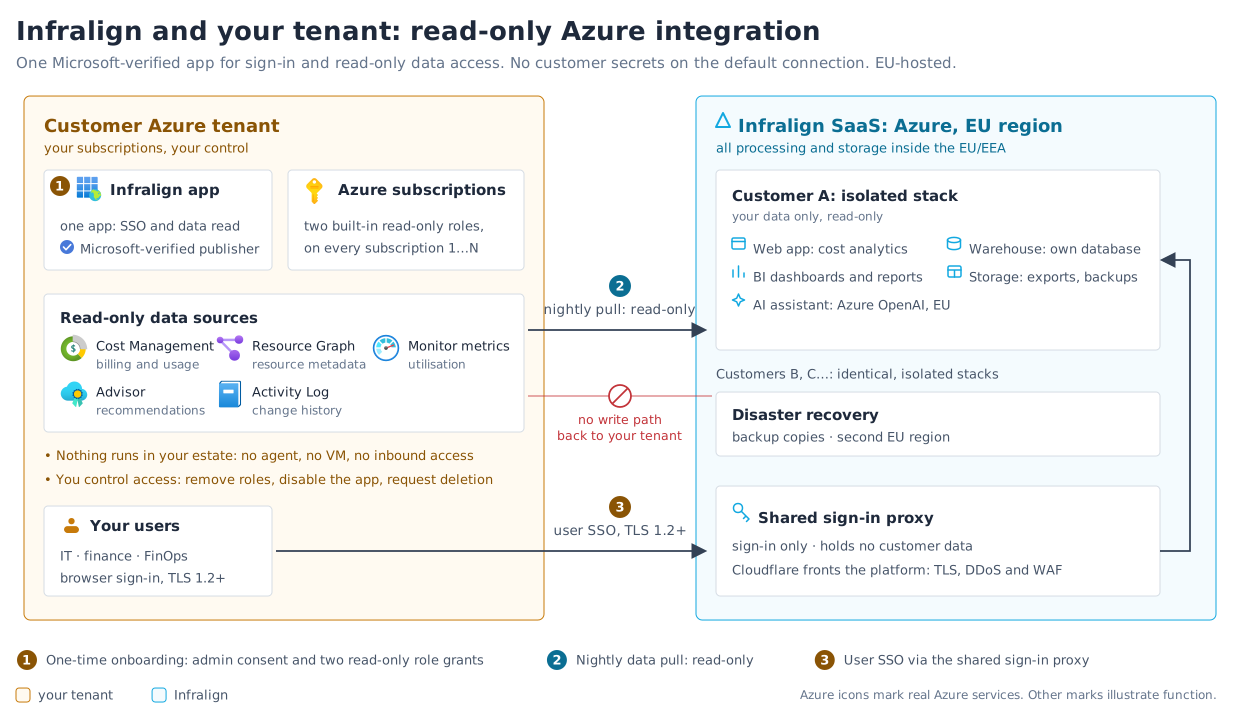
One Infralign application does both jobs. Your tenant consents to it for sign-in, and the nightly run reads your cost data as it.
You grant it two things: the admin consent, and the two read-only roles, Reader and Cost Management Reader. You create no app registration and handle no client secret. Validation runs from Infralign’s side with Infralign’s own credential, and finishing the wizard stores no credential of yours.
Neither role can create, modify, or delete a resource or its configuration in your estate, and no storage account is needed.
How long this really takes
Section titled “How long this really takes”- Who accepts the consent: any one of Global Administrator, Privileged Role Administrator, or Cloud Application Administrator. Not a Global Administrator only.
- Who assigns the roles: Owner or User Access Administrator on the scope you choose.
- In many organisations these are two different people. Find both before you book the time. Nobody needs permission to register applications.
- How long: About 15 minutes at the keyboard, and about 30 minutes elapsed, including the waits. The consent wait and the propagation wait overlap, so neither blocks the other.
| Part | Time |
|---|---|
| The consent answer, when somebody else approves it | Minutes to days. Send the request first, it is the only step that can queue |
| The two role assignments | About 5 minutes with the wizard's Cloud Shell script at any scale, or about a minute per assignment in the portal |
| Azure role propagation | A wait of up to about 10 minutes |
| The wizard's own steps | About 6 minutes |
These are the canonical setup numbers. If a figure elsewhere on the site disagrees with this table, this table is right.
Onboarding at a glance
Section titled “Onboarding at a glance”Figure 1 is the whole arrangement, including what sits on Infralign’s side of the line.
Before you open the wizard
Section titled “Before you open the wizard”Three things, none of them portal work:
- The consent request is sent, and ideally answered. The wizard’s first step checks for it and shows the same link if it is still missing.
- Whoever holds Owner or User Access Administrator is reachable. The Roles step hands them a script; they do not need to touch the wizard itself.
- You know which subscriptions are in scope, or that you want the management group covered wholesale.
Sign in with the exact address Infralign enrolled for you. A different work account, even your own on another tenant, lands on the “this account is not linked to a customer” screen instead.
The wizard is admin-only. Anyone else on your team reaches a status page until the connection is live and their dashboards open. It shows how far setup has got and nothing else: no identifiers, no controls.
Signing in
Section titled “Signing in”Open the link Infralign sent you, or go to app.infralign.ai. While setup is incomplete, every URL lands the admin on the wizard.
Admin consent should already be in place from the consent URL, which is the documented path. If it is not, the first sign-in from your tenant raises the same dialog. Approving it grants sign-in only. Signing in and reading your cost data use the same Infralign application: the Reader and Cost Management Reader role assignments you make in the Roles step below are what grant the data access, and removing them revokes it. The full permission list, and the four checks to make in the dialog, are on dashboard sign-in.
If you administer more than one Infralign account, a picker asks which one you are acting for before the wizard opens.
The wizard steps
Section titled “The wizard steps”Five steps: consent, roles, validate, scope, confirm. No credential step exists, because no credential of yours is involved.
Step 1. Consent
Section titled “Step 1. Consent”Confirm your tenant. The wizard checks that the admin consent has landed (which is what makes the Infralign application exist in your tenant at all) and, if it has not, shows the consent link to send your approver, with the four checks they should make before accepting.
Nothing is stored at this point beyond your tenant ID, which Infralign already holds from enrolment.
Done when the step reports the consent in place and the Roles step opens.
Step 2. Roles
Section titled “Step 2. Roles”Assign Reader and Cost Management Reader to the Infralign enterprise application, at the scope you choose. This is the step that grants the data access, and it happens in your portal or Cloud Shell, not in the wizard.
- One or two subscriptions: the portal path is quickest. Access control (IAM) → Add role assignment, pick the role, search for Infralign under user, group, or service principal. About a minute per assignment.
- More than that, or a management group: the wizard generates a Cloud Shell script, in Bash or PowerShell, that assigns both roles across every subscription you list, or every subscription it can discover, in one run. The script is idempotent: re-running it is safe, and an assignment that already exists is left as it is.
The step also offers a Resource Graph deep link. It opens Azure Resource Graph Explorer in your own portal, signed in as you, running the exact inventory query the roles expose, so you can read for yourself precisely what Infralign will be able to see before validation ever runs.
Management group scope is the recommendation: two assignments for the whole estate, and every subscription created beneath it later is covered by inheritance. The scope trade-offs, and what the two roles can and cannot do, are in the permissions reference.
Done when both roles are assigned at your chosen scope. Then allow up to ten minutes for Azure to propagate before validating: a role assignment that has not propagated returns AuthorizationFailed, which reads as a missing role and is not one.
Step 3. Validate
Section titled “Step 3. Validate”The wizard runs read-only checks from Infralign’s side, authenticating as the Infralign application with Infralign’s own credential. You paste nothing, and no secret exists on your side to paste.
Two checks apply to the account: one sign-in against your tenant, and one subscription list. Three more run per subscription found: Reader, Cost Management Reader, and a one-day cost query. The role checks are matched against the Infralign application’s own service principal in your tenant, not against whichever principal happens to hold the roles, and fail closed.
It takes 30 to 60 seconds. Results stream in as each check settles, so a slow subscription does not hide the rest.
Nothing is written, in your tenant or in Infralign’s. A failed row explains itself and names the subscription. Fix the role assignment in the portal, then re-run the failed checks without re-entering anything.
Done when every check reports green, or the account checks are green and you have decided what to do about the subscriptions that failed.
A subscription without the Reader role is invisible to discovery. It does not appear as a failed row, it does not appear at all. If you expected more subscriptions than the wizard found, assign the role and re-run discovery.
Step 4. Scope
Section titled “Step 4. Scope”Every discovered subscription is ticked. Untick any you want left out. A subscription whose checks failed starts unticked and can be added later from the connection page, so one missing role assignment does not block the rest of the estate.
Adding a subscription later
Section titled “Adding a subscription later”Adding one is deliberate, and takes about a minute:
- Open Admin → Connection.
- Select Re-check the connection. This runs the same discovery the wizard ran.
- Anything new appears in the subscription list, unticked, above a notice naming it.
- Tick it and select Save subscriptions. Collection starts on the next nightly run.
If the new subscription does not appear, the Infralign application has no Reader role on it. Assign the two roles and re-check. Or assign them at management group scope once, and every subscription created beneath it is discoverable from then on.
Done when the count above the list matches the subscriptions you want processed.
Step 5. Confirm
Section titled “Step 5. Confirm”The last step lists everything about to be stored: your tenant ID, the subscriptions in scope, and any exclusion with the reason it was excluded. Read it, then select Finish setup.
No credential of yours is in that list, because none exists on this path. What Infralign stores is the connection record (tenant, subscriptions, scope decisions) and nothing that could authenticate as you or as your tenant.
The same screen offers two optional extras you can skip: adding your team, and asking Infralign to connect a Teams webhook. Neither is needed for the first run. See manage who has access.
Done when the wizard replaces itself with a progress screen naming the ingestion window.
After you finish
Section titled “After you finish”The first nightly run starts between 02:30 and 06:15 UTC, and the progress screen names the day your cost data is expected.
Once that run has landed, your dashboards open within one business day, and [email protected] emails you when they are live. See your first day for what to check then.
Administering the connection afterwards
Section titled “Administering the connection afterwards”The same URL becomes the administration surface once the connection is live. Admins reach it from an Admin section in the dashboard sidebar, whose tabs read Overview, Connection and People. The section is visible to admins only.
| Surface | Path | What you can do there |
|---|---|---|
| Overview and connection | /setup/admin and /setup/admin/connection | Read the stored connection, edit the subscription list, re-check the connection, read the audit trail, end the connection |
| People | /setup/admin/users | Add and remove people, and set each to Admin or Viewer |
No secret needs rotating and no expiry needs watching. The credential the nightly run authenticates with is Infralign’s own, and keeping it valid is Infralign’s job.
Revoking access
Section titled “Revoking access”Every switch is held by your team, and none of them needs Infralign’s agreement.
| Switch | Where | What stops, and how fast |
|---|---|---|
| Remove the two role assignments | Azure portal, at the scope you granted them | Data access stops: the nightly run stops reading after Azure RBAC propagation. Sign-in keeps working |
| Disable or delete the Infralign enterprise application | Entra admin center, under Enterprise applications | Both stop: sign-in and data access end together, because the role assignments bound to the application end with it |
| Remove a person | the People page | Their access ends in about a second, including any session they have open |
Beyond the switches, you can ask Infralign to delete the data already collected for your account: email [email protected]. Ending the connection covers what deletion includes and what a deliberately kept backup cycle looks like.
Classic setup: your own app registration
Section titled “Classic setup: your own app registration”On the classic setup the data access runs as an identity you create and hold: an infralign-reader application in your tenant, with a client secret, the same two roles, and four values pasted into the wizard. Infralign authenticates as your app with your secret, and you own its lifecycle, including the expiry.
The portal work (registration, secret, roles) is one page, with a screenshot at every click: Entra app registration. Come back holding four values. The wizard’s Connect step asks for exactly these and nothing else:
| Value | Where it comes from |
|---|---|
| Directory (tenant) ID | The app registration’s Overview, in the Essentials panel |
| Application (client) ID | The same panel, two rows up. Not the Object ID |
| Client secret Value | Certificates & secrets, copied when Entra showed it once. Not the Secret ID |
| Secret expiry date | Shown beside the secret when you created it |
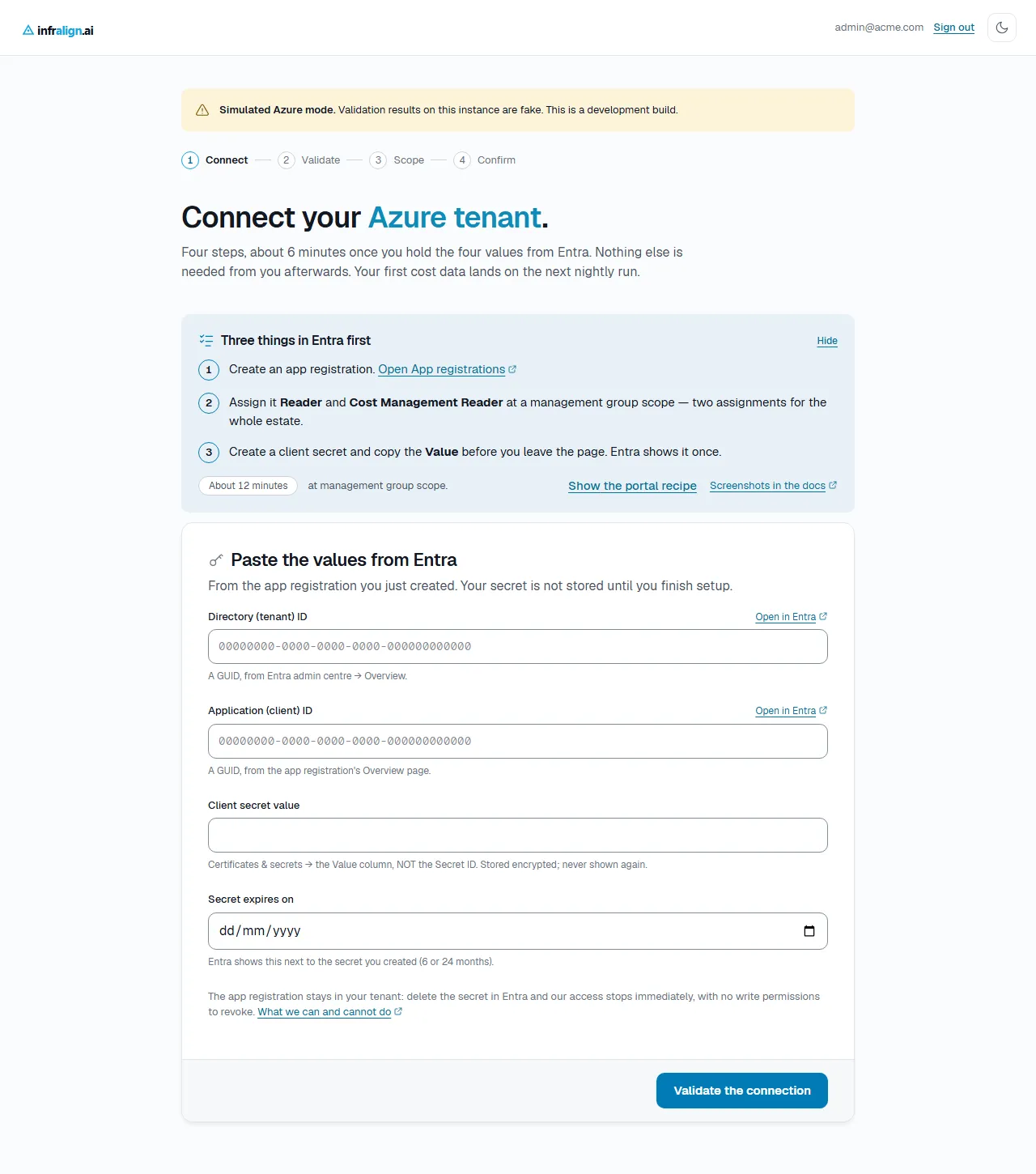
Captured from the setup service on 4 August 2026, signed in as a test account. The “Simulated Azure mode” banner appears on development builds only. You will not see it.
Credential custody on this path. The secret and its expiry stay in the browser tab until the final step, and are never written to local storage, session storage, or a URL. Infralign receives the secret twice. Validation uses it and discards it without writing it. The Confirm step is the only step that stores it, encrypted before it is written, with the key kept outside the database. Close or reload the tab before Confirm and nothing is stored: reopening the wizard restores the two IDs from a draft, and you paste the secret and expiry again. See security and data handling.
The expiry is yours to watch. The connection page shows the expiry date, and inside the last 30 days it adds a day count and an amber badge. Both appear only when an admin opens that page: no email, Teams message or alert is sent as the date approaches, and no scheduled job checks it. Put the reminder in your own calendar. If the secret does lapse, the nightly run stops collecting and the failure looks like any other authentication failure; dashboards keep showing the data already collected, so the symptom is cost figures that quietly stop moving.
Rotation happens on the connection page. Create the new secret in Entra first, then paste it in: the new value is validated before it replaces the old one, so a failed check changes nothing, and the overlap leaves no gap in the nightly run.
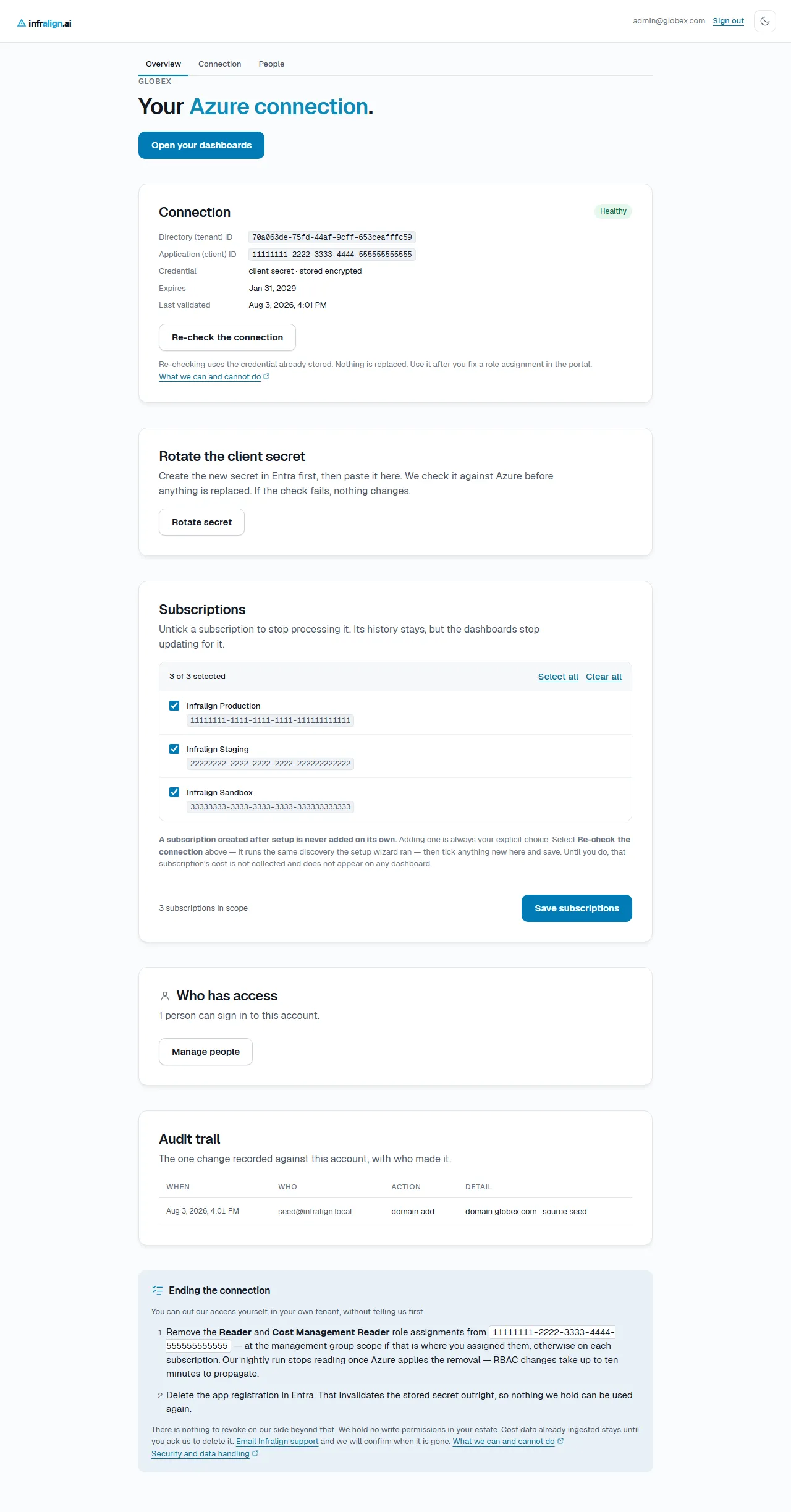
Captured from the setup service. Identifiers, dates and the account name are test values.
Revoking on this path: delete the two role assignments, delete the infralign-reader app registration (the stored secret then authenticates nothing), or rotate the secret without giving Infralign the new value. Deleting the Infralign enterprise application still ends sign-in, but on this path it leaves your infralign-reader data access standing until you remove it yourself.
By default the wizard refuses a credential from a different directory. Two cases need cross-tenant connections switched on: your Azure estate spans tenants, or you sign in from another tenant, such as a personal Microsoft account or a managed service provider. Ask Infralign to switch them on before you start.
Troubleshooting
Section titled “Troubleshooting”| Symptom | Cause | Fix |
|---|---|---|
| Sign-in lands on the “this account is not linked to a customer” screen | The address signed in with differs from the one Infralign enrolled | Compare the two first. If they match, or the enrolled address is wrong, ask for it to be changed |
| The consent dialog says approval is needed on behalf of your organisation | Tenant policy blocks non-admin consent | Ask a Global Administrator to open the same link |
| Step 1 reports the consent missing after your approver accepted | The consent has not landed yet, or the Infralign enterprise application was deleted afterwards | Check Enterprise applications for the Infralign entry. Absent: re-send the consent URL. Present: re-run the check |
| A subscription’s Reader or Cost Management Reader check fails | The role is missing on that subscription, or is still propagating | Assign it to the Infralign application, wait up to ten minutes, then re-run the failed checks |
| Every role check fails, on every subscription | The roles were assigned to the wrong principal: a similarly named app, or a user | Open Access control (IAM) → Role assignments and confirm the assignee is the Infralign enterprise application. The wizard matches the application’s own principal and accepts no stand-in |
| Discovery fails with “No subscriptions are visible” | The Infralign application holds Reader on no subscription, or the assignment has not propagated | Assign Reader at management group scope, wait up to ten minutes, and re-run |
| The wizard found fewer subscriptions than you expected | A subscription without Reader is invisible to discovery | Assign Reader, then re-run discovery from the Scope step |
Validation returns AADSTS53003 or another AADSTS error | A workload-identity Conditional Access policy blocks the app | Scope the policy by named location using Infralign’s egress IPs, rather than excluding the identity. Email [email protected] for the current IP list |
| Classic setup: the sign-in check fails | One of the three values is wrong, or the pasted secret is the Secret ID rather than the Value | Check all three against the portal. Re-running sends the same values and fails the same way |
| Classic setup: the sign-in check fails and every value matches the portal | The secret has expired. An expired secret authenticates nothing, and Entra returns the same refusal as a wrong one | Open Certificates & secrets and read the Expires column. Create a new secret, then rotate it in on the connection page |
| Dashboards empty after the first run | A subscription is missing one of its two role assignments | Re-check Access control (IAM) → Role assignments, then re-check the connection |
If you cannot use the wizard
Section titled “If you cannot use the wizard”Some tenants need the exact portal click path recorded for change control, or a CLI transcript as evidence that the access works. Both are in manual connection. It is the fallback, not the normal path.
Next: Manage who has access.
© Infralign Smart Solutions Limited · Registered in Ireland · Company no. 815072 · Dublin