

Getting started
Dashboard sign-in (SSO)
One admin consent, once per tenant. The URL to open, the four checks to make in the dialog, and how to read the grant back.
Validated against the Azure portal on 5 August 2026.
Users sign in at app.infralign.ai with the Microsoft work accounts they already have, through the Microsoft-verified Infralign application. The consent below asks for sign-in permissions and nothing else.
The same application does a second job: once your admin assigns it the two read-only roles, it is also the identity the nightly run reads your cost data as. This page owns the consent. Connect Azure owns the roles. The consent itself never grants data access.
No password reaches Infralign. No new credential is created.
Grant admin consent (one time)
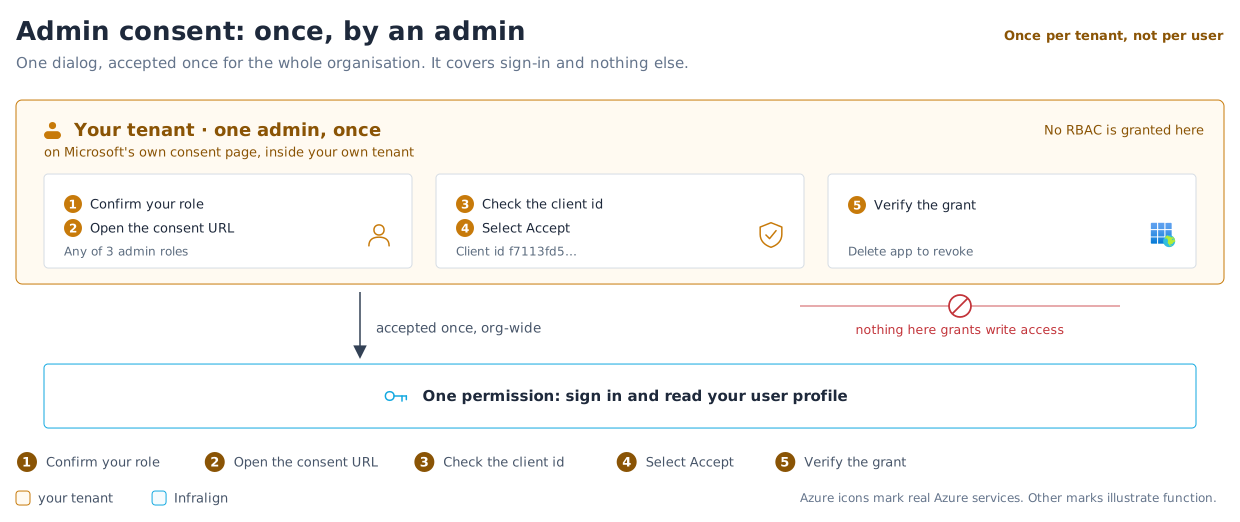
Section titled “Grant admin consent (one time)”One admin, one consent, one enterprise application. Figure 1 is the whole of it. The grant covers every current and future user in your tenant, so nobody meets a per-user prompt.
-
Confirm that you hold one of the three roles listed above.
Done when Entra shows the role as active for your account.
-
Open the admin-consent URL for your tenant.
Replace
YOUR_TENANT_IDwith your tenant GUID. It is on the Entra admin center’s Overview page, under Entra ID, as Tenant ID. Your tenant’s primary domain works in its place.https://login.microsoftonline.com/YOUR_TENANT_ID/adminconsent?client_id=f7113fd5-938a-4551-9406-e8e964e0308e&redirect_uri=https%3A%2F%2Fapp.infralign.ai%2Foauth2%2FcallbackThe
redirect_urivalue fixes where the browser lands after you accept. Step 4 describes that page.Done when the Microsoft consent dialog opens.
-
Verify these values in the consent dialog:
Field Required value Application Infralign Client ID f7113fd5-938a-4551-9406-e8e964e0308e, carried in the URL you opened in step 2. The dialog itself does not display itPermission Sign in and read user profile Publisher Infralign Smart Solutions, with a blue verified badge 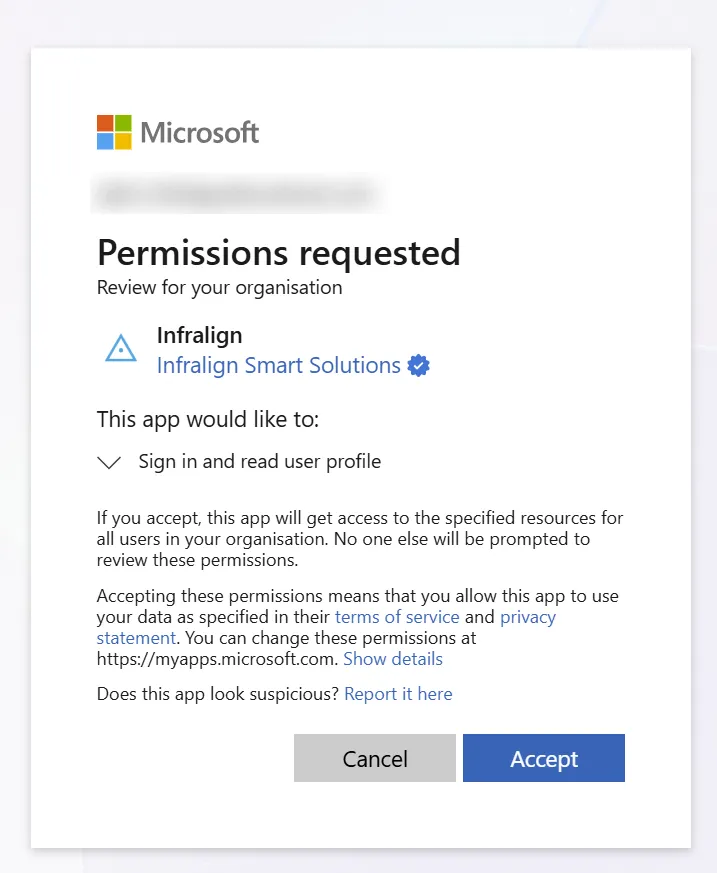
The dialog as a Global Administrator of an external tenant sees it. Captured 6 August 2026; the admin’s address is blurred. It lists one grouped entry.
Do not accept a request from a URL whose client ID differs. A matching name over a different ID is a consent-phishing signal.
Done when every value in the table matches and the four checks below hold.
-
Select Accept.
The browser then lands on an “access denied” page at
app.infralign.ai. That is expected, and it is not a failure: a consent receipt is not a sign-in, so the sign-in service refuses it. The approval is recorded the moment you select Accept. The address bar confirms it, carryingadmin_consent=Trueand your tenant ID.Done when the address bar reads
app.infralign.aiand carriesadmin_consent=True. -
Read the grant back. In the Entra admin center, confirm Infralign appears under Enterprise applications. Open Permissions → Admin consent.
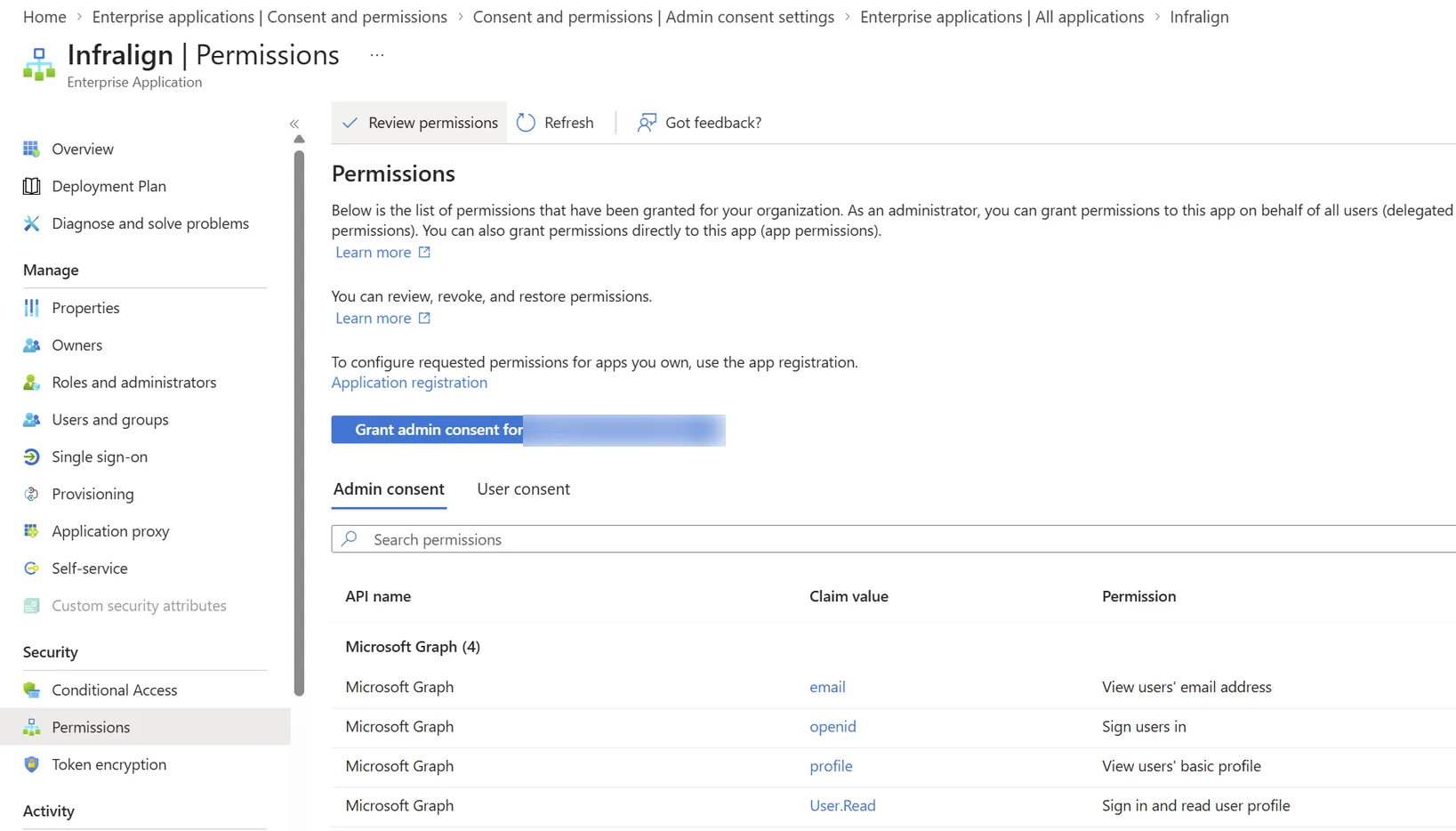
The grant, read back from a tenant that has consented. Your own organisation’s name appears on the button, so it is blurred here. Captured 5 August 2026.
Four rows, not five.
offline_accessis requested at each sign-in rather than registered on the app, so it never appears in this record. Check what is absent from the list, not how long the list is.Done when the enterprise application is listed and the four rows above are the only ones under Microsoft Graph.
Approving the app grants sign-in only: User.Read and the other sign-in scopes above, nothing wider. The Reader and Cost Management Reader role assignments you make on the wizard’s Roles step are what grant the data access, and removing them revokes it.
Accepting is also what creates the Infralign entry under Enterprise applications. It is the record of the consent, and deleting it revokes the consent. It is also the identity your admin assigns the two roles to, so deleting it ends both sign-in and data access at once.
Verifying this is the real request
Section titled “Verifying this is the real request”Make all four checks before you accept.
| Check | It passes when |
|---|---|
| Client ID | The URL you opened carries client_id=f7113fd5-938a-4551-9406-e8e964e0308e. No other application can present that ID. A dialog named “Infralign” raised by a different client ID is consent phishing, verified badge or not. |
| Permission list | Every entry appears in what the app asks for. Microsoft groups and words them differently per screen, so check that nothing outside the set appears. |
| The URL you opened | It carries your own tenant ID and client_id=f7113fd5-938a-4551-9406-e8e964e0308e. Check the address bar yourself. A link from a colleague is fine once you verify both values; a link you cannot verify is not. |
| Publisher | It reads Infralign Smart Solutions with a blue verified badge, and the domain reads infralign.ai. One signal among four, not a substitute for the other three. |
If all four hold, accept. If any fails, close the dialog without accepting, then email [email protected].
Publisher verification is an identity check, not a security audit. What Infralign does with your data is in security and data handling.
What the app asks for
Section titled “What the app asks for”Five permissions. Every one of them exists to sign a person in.
| Permission | How the dialog words it | What it does |
|---|---|---|
openid | Sign users in | Establishes who the person is. The base of any Microsoft sign-in. |
profile | View users’ basic profile | Their name and basic profile fields. |
email | View users’ email address | The address Infralign matches against your account’s people list. |
User.Read | Sign in and read user profile | Reads their own profile. Not anyone else’s. |
offline_access | Maintain access to data you have given it access to | Keeps the session alive. It grants no new data, and deleting the enterprise application ends it. |
None of the five can list other users, read your directory, or reach a mailbox, a file, or any Azure resource. Reading your cost and resource data takes a separate grant that is never part of this consent: the two read-only roles you assign to this same application.
Do not count the entries. The dialog rarely lists all five at once. Admin consent covers the four registered on the app together. offline_access is added by the sign-in proxy at the moment of the request, so it can appear on a screen that lists nothing else. Check instead that nothing appears which is not in this table.
If your tenant restricts consent
Section titled “If your tenant restricts consent”Find out in advance. In the Entra admin center, open Enterprise applications → Consent and permissions → User consent settings.
| Your tenant’s setting | Can a non-admin sign in without you? | What you have to do |
|---|---|---|
| Allow user consent for all apps | Yes | Nothing. The first sign-in by any enrolled user works. |
| Allow user consent for apps from verified publishers | Yes. Infralign is verified and User.Read is in the low-impact set. | Nothing, though admin consent is still tidier. |
| Do not allow user consent | No | Grant admin consent before anyone signs in, or they meet AADSTS90094. |
Admin consent is the recommended path in every row. It also removes per-user “Need admin approval” interruptions.
One more setting matters on that page. If Admin consent requests is enabled, a blocked user’s request queues for named reviewers and the user sees the screen below. Re-sending the consent URL changes nothing: the request is already in somebody’s queue. Find the named reviewer and ask them. It can take days.
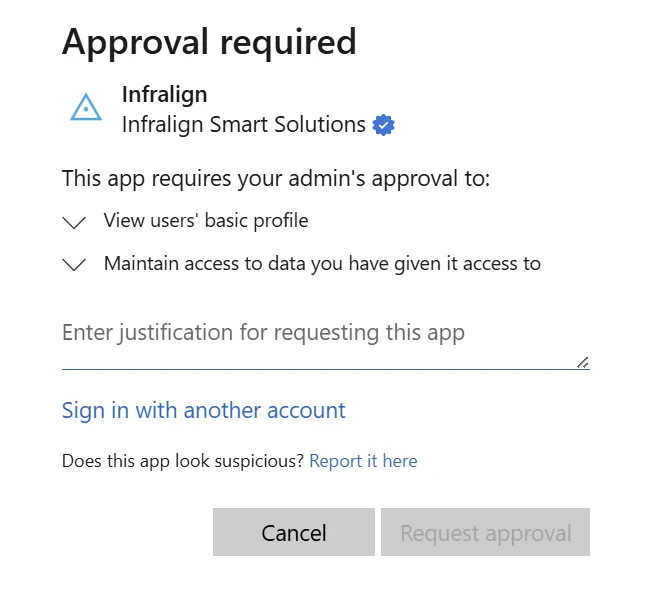
What a non-admin sees when the tenant queues consent requests. Captured from a real tenant on 5 August 2026; the tenant’s identifying header is cropped out. It lists two of the five permissions rather than all five.
Constraining the grant after you accept
Section titled “Constraining the grant after you accept”Every lever below is applied after consent, in your own tenant, with no involvement from Infralign.
- Set Assignment required to Yes. On Enterprise applications → Infralign → Properties, set Assignment required? to Yes. Only identities you assign under Users and groups get a token. Entra refuses everyone else before Infralign sees the request.
- Scope it to one named group. Manage the assignment through a single security group. The membership then answers “who can reach this” in one place, which is what an auditor asks for.
- Apply Conditional Access to the app. The sign-in application takes ordinary policy: require MFA, require a compliant device, restrict by named location. Sign-in happens on Microsoft’s page inside your tenant, so your policy applies in full.
- Revoke a live session. The application is subject to Continuous Access Evaluation, so a token can be cut mid-session rather than lingering until it expires.
- Put an access review on the group. An Access reviews cycle gives the decision an expiry date.
Two systems then decide access, and both have to agree. Entra decides who may obtain a token. The Infralign People page decides who the dashboards open for. A person added in one and not the other cannot sign in.
A future release that needs more than User.Read cannot widen this grant quietly: Entra raises a fresh consent dialog. If a dialog ever names a permission this page does not list, close it and email [email protected].
Optional: revoke consent
Section titled “Optional: revoke consent”To stop new sign-ins, delete the Infralign enterprise application. Existing sessions expire on their own. The role assignments bound to that application end with it, so the one deletion cuts sign-in and data access together.
To cut off one person, remove them on the People page. Their access ends in about a second.
To cut off a whole tenant, ask Infralign to remove it from the allowlist. That is the one revocation here you cannot perform yourself. Deleting the Infralign enterprise application achieves the same outcome immediately, and needs nobody’s agreement.
What happens at sign-in
Section titled “What happens at sign-in”Once consent is in place, each sign-in follows the same path. Microsoft redirects the user to its own sign-in page.
The user enters their password and MFA inside your tenant. Infralign cannot see either value.
Microsoft returns an ID token with the user’s name, email, and tenant ID. Infralign checks two allowlists before loading the dashboard, as figure 2 shows.

Who can sign in
Section titled “Who can sign in”Infralign enrols your first admin before sending the setup link. That admin then adds and removes everybody else, from the People page in the dashboard sidebar’s Admin section.
Each enrolled identity is pinned to your tenant ID. A removal takes effect in about a second, including any session the person already has open.
The roles, the domain rule and the guardrails are in manage who has access.
If sign-in fails
Section titled “If sign-in fails”Two security gates run after Microsoft sign-in:
| Gate | Rejection state |
|---|---|
| Tenant allowlist | The callback rejects a tenant that is not enrolled. |
| User allowlist with tenant binding | Tenant pages return 403 for an unenrolled or mismatched identity. |
| Symptom | Cause | Fix |
|---|---|---|
”Need admin approval” interrupt (AADSTS65001 or AADSTS90094) | Consent is missing and the tenant blocks user consent | Send the admin the consent URL above. The admin-notify workflow is off by default in most tenants, so the request may not reach an admin on its own. |
AADSTS700016, application not found in tenant | Admin consent was never granted, so the sign-in application was never provisioned | Grant admin consent (steps above). |
AADSTS50011, redirect URI mismatch | The reply URL does not match what the app expects | Contact Infralign. This is fixed on Infralign’s side. |
AADSTS65004, user declined the dialog | Someone selected Cancel on the consent dialog | Re-open the consent URL and select Accept. |
AADSTS50105, user not assigned to a role for the application | Your tenant set Assignment required? to Yes on the Infralign sign-in application and this person is not assigned | Add them, or their group, under Enterprise applications → Infralign → Users and groups. See constraining the grant after you accept. |
| Signed in fine, but every page returns 403 | The user is not on the account, or their email does not match the one added | An admin adds the exact address their Microsoft account asserts, on the People page. |
| Rejected straight back to sign-in at the callback | Your tenant is not yet on the allowlist | Confirm Infralign has your tenant GUID. |
Next: Connect Azure.
© Infralign Smart Solutions Limited · Registered in Ireland · Company no. 815072 · Dublin