

Getting started
Manage who has access
Add and remove your own people, set each to Admin or Viewer, and see how fast a removal takes effect.
Validated against the setup service on 3 August 2026.
Your admins add and remove their own people. Infralign is not in the loop, and there is no ticket.
Open the People page from the Admin section of the dashboard sidebar, which is visible to admins only. Its address is /setup/admin/users, and that URL is safe to put in an email.
The same controls appear as an optional block on the last step of the setup wizard, so the first admin can add colleagues before the first nightly run lands.
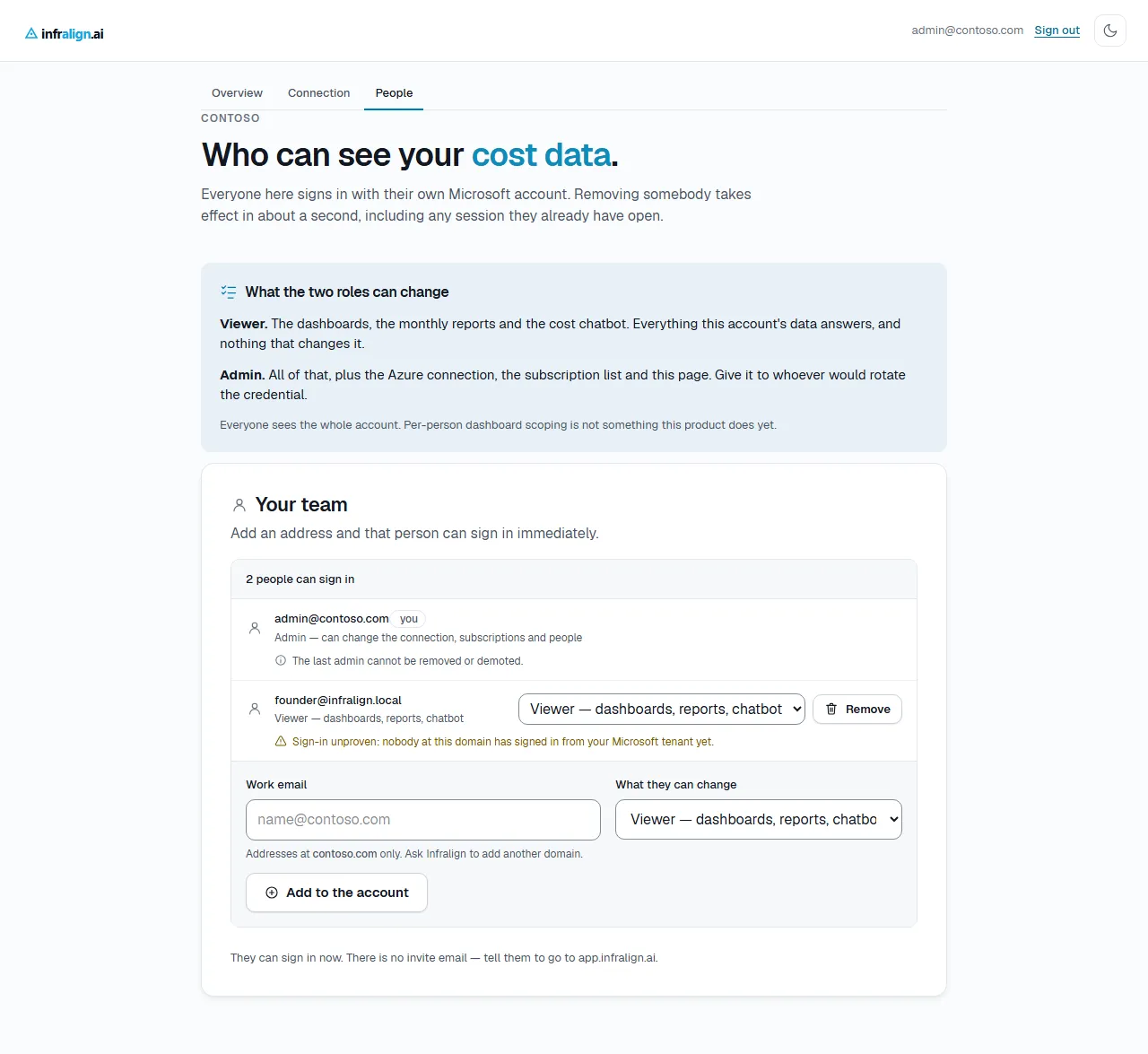
Captured from the setup service. The addresses and the account name are test values.
The two roles
Section titled “The two roles”| Role | What they can change |
|---|---|
| Viewer | Nothing. They read the dashboards, the reports and the chatbot. |
| Admin | All of that, plus the Azure connection, the subscription list, and this page. |
Give Admin to whoever would change the Azure connection.
Before the dashboards open, a Viewer sees a status page giving the ingestion window and how far setup has got. Only the admin’s screen shows the Directory (tenant) ID.
Everyone on the account sees the whole account. Per-person dashboard scoping is not built.
Add somebody
Section titled “Add somebody”- Open the People page.
- Enter their work email address.
- Choose Viewer or Admin.
- Select Add to the account.
Done when the row appears in the list and the count above it goes up by one.
That person can sign in immediately, with their own Microsoft work account, at app.infralign.ai. No email is sent to them. The page states it plainly:
They can sign in now. There is no invite email — tell them to go to app.infralign.ai.
Tell them yourself. Nothing else will.
The domain rule
Section titled “The domain rule”An admin may add addresses only at a domain Infralign has recorded for the account. The first admin’s own domain seeds the list.
A refusal names both the domain that was typed and the domains that are allowed, so the next step is your own IT rather than Infralign’s support queue.
To add a subsidiary’s domain, or a contractor’s own domain, ask Infralign. Recording a domain is an operator action and it is audited.
If no domains are recorded for your account, the add form does not appear and the page says so. An account whose first admin signed up at a personal-mail address starts in that state. Ask Infralign to record your company’s domain.
When the page warns rather than refuses
Section titled “When the page warns rather than refuses”Check the address yourself. Infralign cannot verify with Microsoft that your tenant issues it, so an add succeeds and the row carries a warning.
Watch for it. An address your tenant does not issue fails at Microsoft’s own sign-in, before the request reaches Infralign, with an error nobody on your side can debug.
If your account has Azure connections in two different Entra tenants, an add is refused rather than guessed at. The wrong tenant would either lock the person out permanently or trust an issuer nobody chose. Ask Infralign to enrol them.
Change somebody’s role
Section titled “Change somebody’s role”- Open the role menu on their row.
- Choose the other role.
- Select elsewhere on the page, or press Enter.
Done when the sentence under their address names the new role.
The change applies to their next request, within about a second.
Remove somebody
Section titled “Remove somebody”- Select Remove on their row.
- Read the confirmation, then select Remove access.
Done when their row is gone and the count above the list goes down by one.
Their access ends in about a second, including any session they already have open. Nothing else changes, and you can add them again at any time.
The guardrails
Section titled “The guardrails”| Rule | What it prevents |
|---|---|
| You cannot remove or demote yourself | An admin locking themselves out of their own account |
| The last admin cannot be removed or demoted | An account with nobody who can change the Azure connection |
A blocked row explains itself in place rather than showing a greyed-out button. Both rules apply at once for a sole admin looking at their own row. The page then tells you to make someone else an admin first.
What is recorded
Section titled “What is recorded”Every add, removal and role change is written to the account’s audit trail with the address that made it. Refused adds are recorded too, so repeated attempts at a domain that is not yours are visible.
Read the trail on the connection page. See connect Azure.
Troubleshooting
Section titled “Troubleshooting”| Symptom | Cause | Fix |
|---|---|---|
| The add form is missing | No email domains are recorded for the account | Ask Infralign to record your company’s domain |
| The address is refused and the message names your allowed domains | The address is at a domain that is not recorded | Add an address at a listed domain, or ask Infralign to record the new one |
| The person you added cannot sign in | Their Entra tenant is not the one connected to this account | Check the warning on their row, then ask Infralign |
| Every page returns 403 for a person who is on the list | The address does not match the one their Microsoft account asserts | Remove the row and add the exact address Microsoft returns |
| Remove is missing on a row | The row is you, the last admin, or a read-only Owner row left over from an account set up before self-serve access | Promote somebody else first, or ask Infralign |
Next: Your first day.